


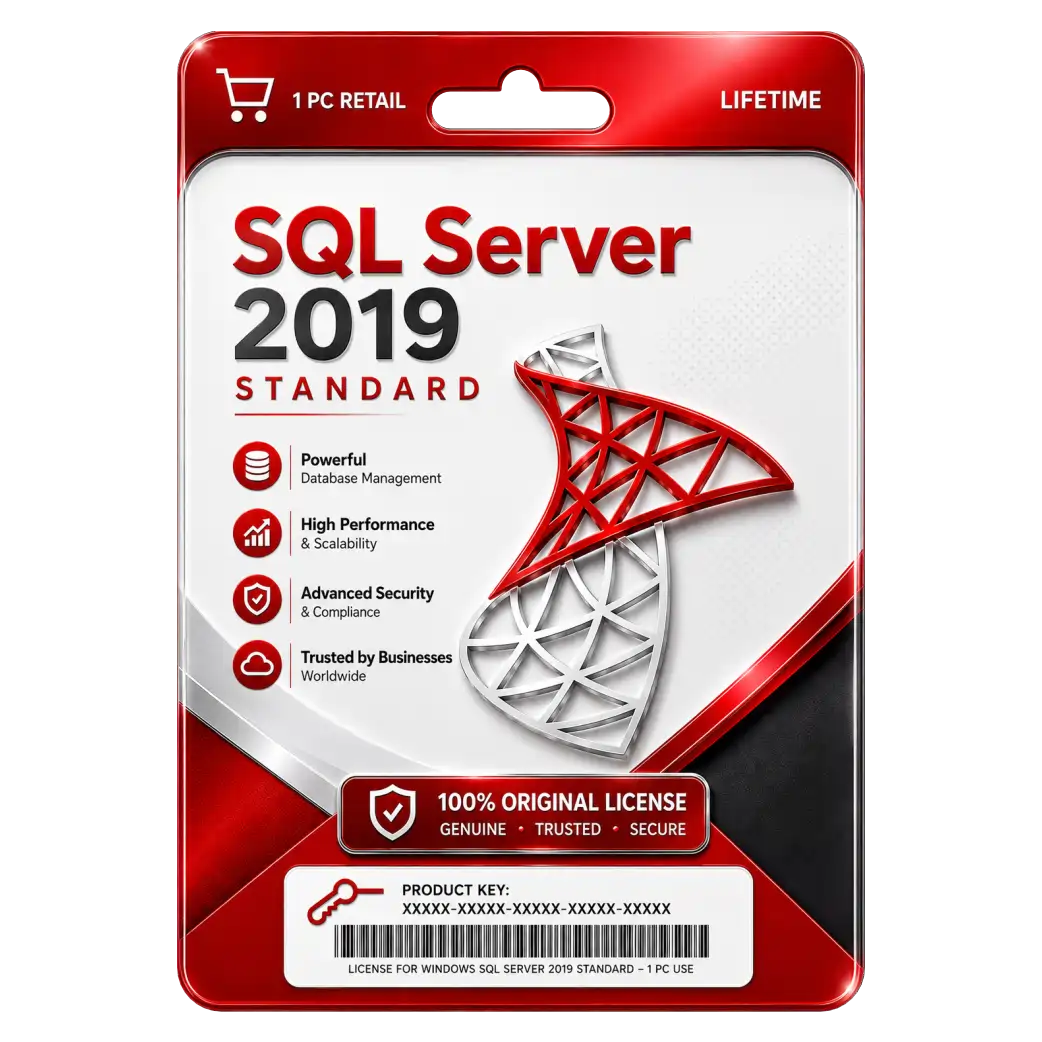
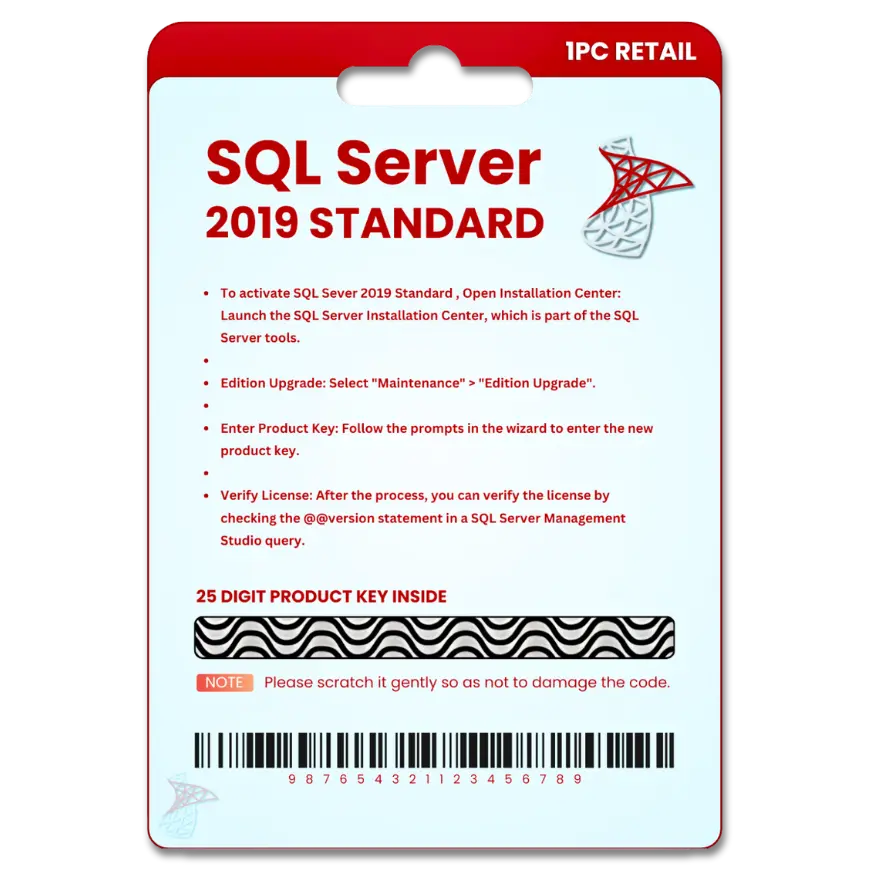
SQL Server 2019 Standard For 1PC
Original price was: ₹2,549.00.₹1,549.00Current price is: ₹1,549.00. License


Enterprise Grade Performance For Business Critical Database Applications
Advanced Security Features Protect Sensitive Business Data Effectively
Comprehensive Management Tools Simplify Database Administration Tasks Daily
Reliable High Availability Ensures Continuous Business Operations Always

SQL Server 2019 Standard Installation Guide
1. Download
Download the SQL Server 2019 Standard setup file from the download link provided after purchase.
2. Run the Installer
Right-click Setup.exe and select Run as Administrator.
3. Start Installation
Select New SQL Server stand-alone installation and click Next.
4. Enter Product Key
Enter your product key if prompted, then click Next.
5. Accept License Agreement
Accept the Microsoft License Terms and click Next.
6. Select Features
Choose the required features or keep the default selection, then click Next.
7. Configure Instance
Select Default Instance (Recommended) and continue.
8. Configure Database Engine
Choose your preferred authentication mode, create an SA password (if required), and click Add Current User.
9. Install
Click Install and wait for the installation to complete.
10. Finish
Click Close and restart your computer if prompted.
11. Install SSMS (Recommended)
Download and install SQL Server Management Studio (SSMS) to manage your databases.
12. Connect to SQL Server
Open SSMS, enter your server name (e.g., localhost), choose the appropriate authentication method, and click Connect.
Related products





 Office 365
 Office 2024
 Office 2021
 Office 2019
 Office 2013
 Office 2010
 Office 2007
 Windows 12
 Windows 11
 Windows 10
 Windows 7






Reviews
There are no reviews yet.