


Sale
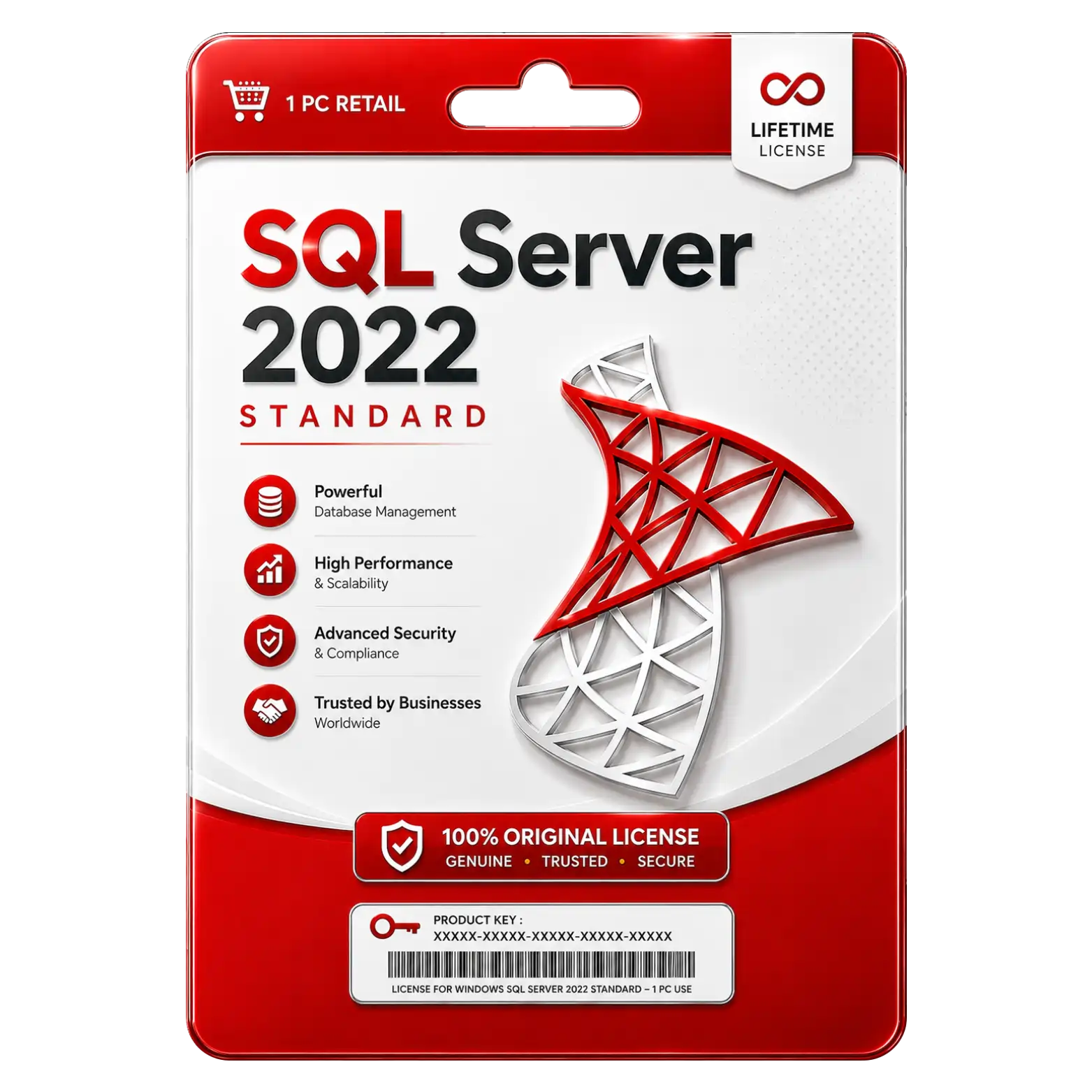
SQL Server 2022 Standard For 1PC
Original price was: ₹7,500.00.₹5,500.00Current price is: ₹5,500.00. License

84
People watching this product now!
Description

SQL Server 2025 Standard Original Lifetime Retail License
Improved Query Processing Delivers Better Performance For Workloads
Built In Tools Simplify Database Management And Administration
Scalable Platform Supports Growing Business Data Requirements Efficiently

Reviews (0)
INSTALLATION GUIDE
Related products
Sale
Original price was: ₹20,000.00.₹12,000.00Current price is: ₹12,000.00. License
Sale
Original price was: ₹1,549.00.₹849.00Current price is: ₹849.00. License
Sale
Original price was: ₹1,549.00.₹1,249.00Current price is: ₹1,249.00. License
Sale
Original price was: ₹4,549.00.₹849.00Current price is: ₹849.00. License
Sale
Original price was: ₹12,000.00.₹6,999.00Current price is: ₹6,999.00. License
Sale
Original price was: ₹1,549.00.₹1,049.00Current price is: ₹1,049.00. License
Sale
Original price was: ₹2,549.00.₹1,490.00Current price is: ₹1,490.00. License
Sale
Original price was: ₹2,549.00.₹1,549.00Current price is: ₹1,549.00. License


 Office 365
 Office 2024
 Office 2021
 Office 2019
 Office 2013
 Office 2010
 Office 2007
 Windows 12
 Windows 11
 Windows 10
 Windows 7






Reviews
There are no reviews yet.